

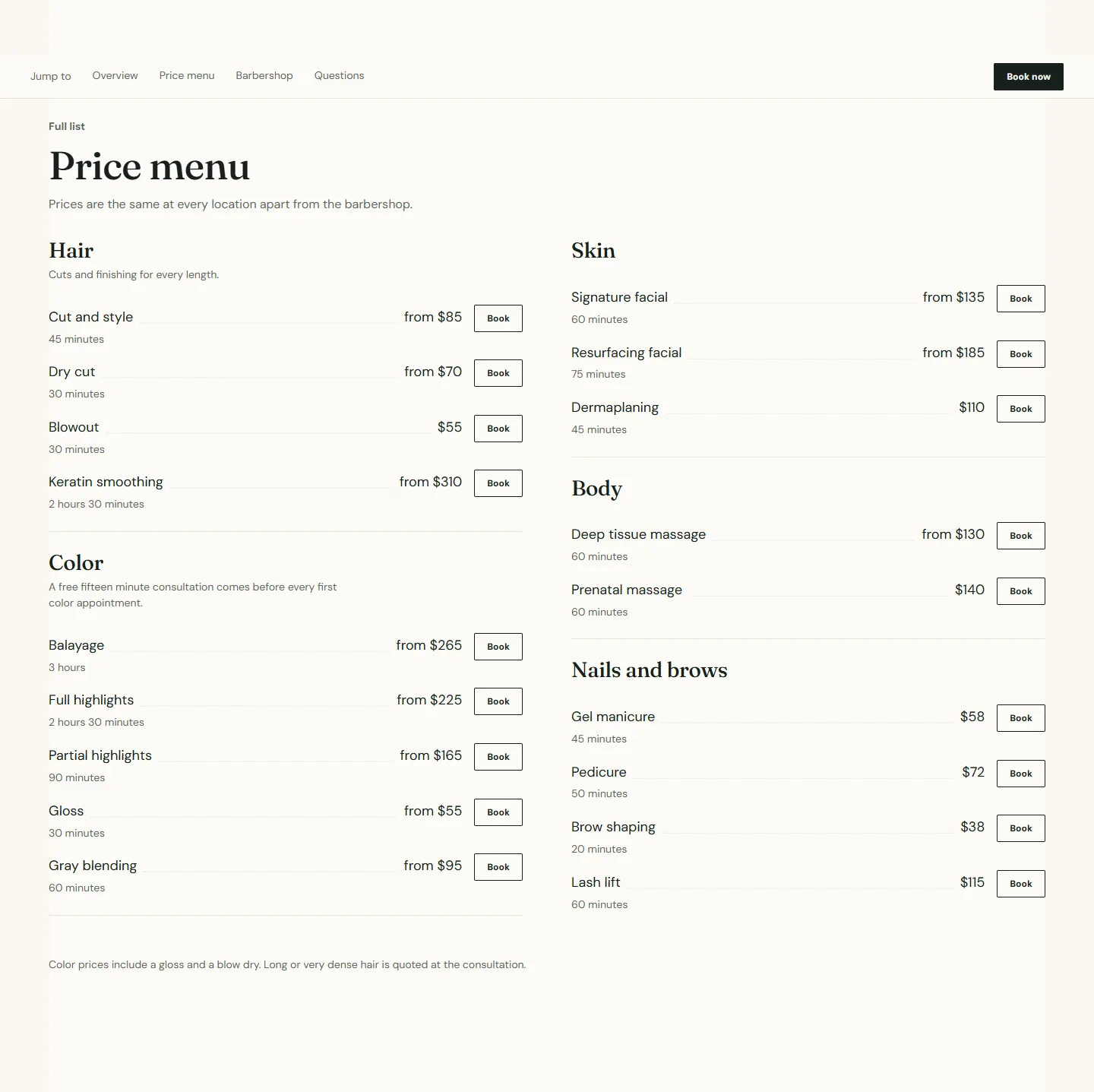
The Service menu is the priced list that most guests read before they book. It is built from two kinds of block: a Category block starts a group, and the Service blocks after it belong to that group until the next Category block. Drag blocks in the sidebar to reorder them.
Heading
Eyebrow, Heading, Intro text and Heading alignment.
Layout
- Category layout is Collapsible or Open list. Collapsible shows each category as a row that opens on tap; Open list shows everything.
- Open categories applies to the collapsible layout: All open, First open or All closed. First open is a good default for a long menu on a phone.
- Two columns on desktop splits the list into two columns. Best for long menus with short service names; leave it off when descriptions run to a full sentence.
- Footnote is one line under the menu for the pricing rule everyone asks about, for example that prices rise with stylist level.
Booking
- Show a button on every service puts a Book button on each row. Rows with a Booking ID book that service; rows without book the section's center.
- Show a booking bar on mobile pins a bar with one Book button to the bottom of small screens, so a guest reading a long menu can book without scrolling back.
- Location name is sent with every booking click for analytics. Booking center ID is the center every row books; leave it blank on the services page and set it on location pages.
Service menu section
Every setting, with its control and default- Color schemeColor scheme · Scheme 1
- Full widthCheckbox · Off
- Section paddingChoice: None, Small, Regular, Large · Regular
- EyebrowText
- HeadingText · Service menu
- Intro textRich text
- Heading alignmentChoice: Left, Center · Left
- Category layoutChoice: Collapsible, Open list · Collapsible
- Open categoriesChoice: All open, First open, All closed · First openApplies to the collapsible layout only.
- Two columns on desktopCheckbox · OffBest for long menus with short service names.
- FootnoteText · Prices start at the listed rate and rise with stylist level and hair length.
- Show a button on every serviceCheckbox · On
- Show a booking bar on mobileCheckbox · OnA bar pinned to the bottom of the screen on small screens.
- Location nameTextSent with every booking link so your analytics can tell locations apart.
- Booking center IDTextThe provider ID for this location. Leave blank to use the default from theme settings.
Category blocks
Category name and an optional Category description shown under it.
Service blocks
- Service name, Duration and Price. Price is plain text, not a product price, so you can write from $85, $85 to $120 or Consultation.
- Service description, one short line.
- Booking ID and Link type (Booking home, Service, Category, Membership, Series package, Day package). Most rows use Service.
- Link replaces the built booking link with any URL, for another provider or a page.
Service menu section
Every setting, with its control and default- Color schemeColor scheme · Scheme 1
- Full widthCheckbox · Off
- Section paddingChoice: None, Small, Regular, Large · Regular
- EyebrowText
- HeadingText · Service menu
- Intro textRich text
- Heading alignmentChoice: Left, Center · Left
- Category layoutChoice: Collapsible, Open list · Collapsible
- Open categoriesChoice: All open, First open, All closed · First openApplies to the collapsible layout only.
- Two columns on desktopCheckbox · OffBest for long menus with short service names.
- FootnoteText · Prices start at the listed rate and rise with stylist level and hair length.
- Show a button on every serviceCheckbox · On
- Show a booking bar on mobileCheckbox · OnA bar pinned to the bottom of the screen on small screens.
- Location nameTextSent with every booking link so your analytics can tell locations apart.
- Booking center IDTextThe provider ID for this location. Leave blank to use the default from theme settings.
Category block
Up to 50 blocks in the section- Category nameText · Hair
- Category descriptionText
Service block
Up to 50 blocks in the section- Service nameText · Cut and style
- DurationText · 45 minutes
- PriceText · from $85Plain text, for example from $85. It is not a product price.
- Service descriptionText
- Booking IDTextThe service or category ID from your booking provider.
- Link typeChoice: Booking home, Service, Category, Membership, Series package, Day package · Service
- LinkLinkUse this to point at any other booking provider. It replaces the built link.
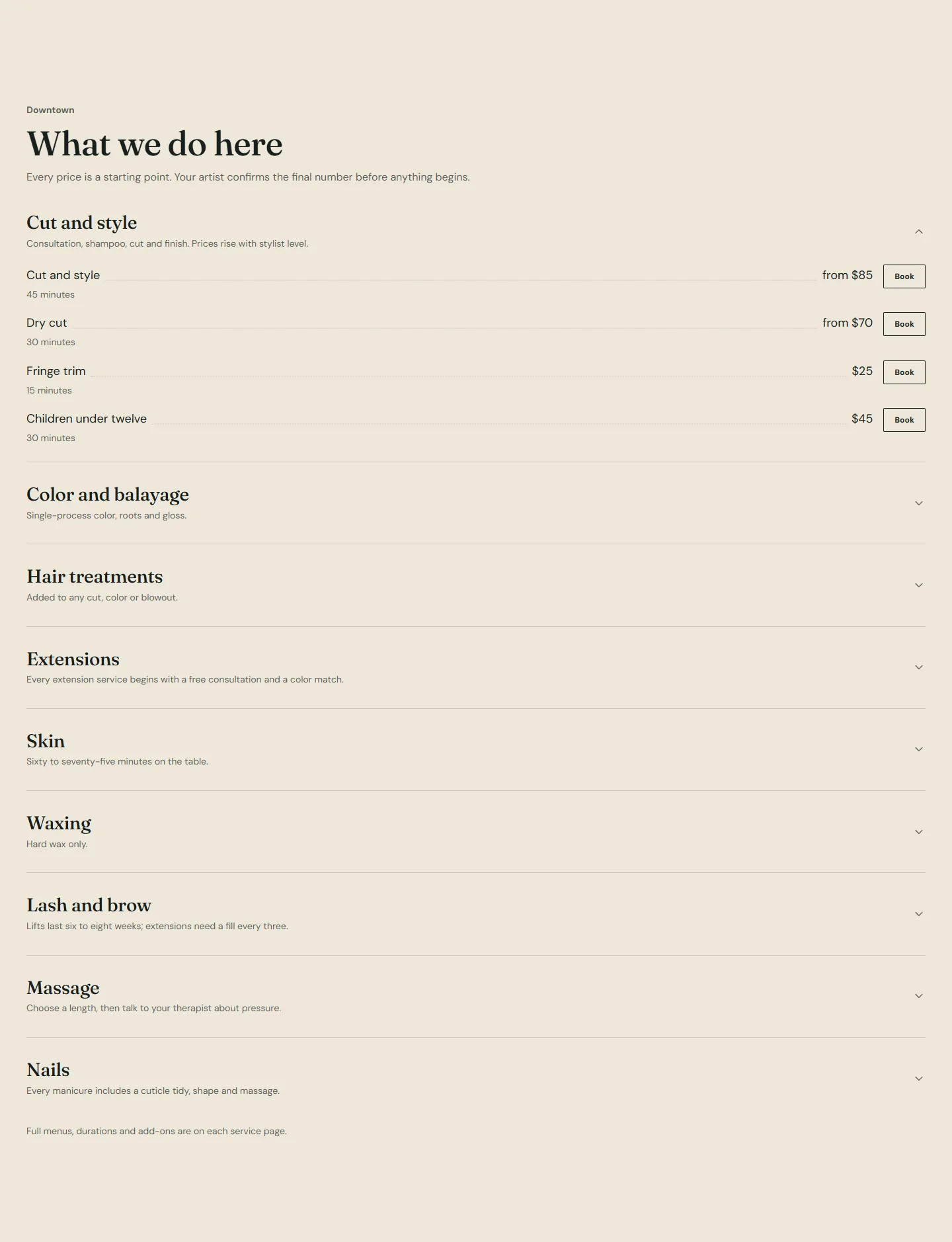
Fifty blocks
Shopify caps a section at fifty blocks, categories included. A full salon menu usually needs more than that, which is why the demo puts the complete menu for each category on its own category page and keeps the services page to the headline list. A second Service menu section on the same page is another fifty.
A menu for one location
On a location page, set Booking center ID and Location name so every row books that center, and list only the services that location offers. The demo's Barbershop menu on the services page does the same with Location name The Barbershop at Northgate.