

A category page is where a guest decides. The demo has ten of them, one per category, all from the same template: an opener with the booking button, the priced menu grouped the way you group it in the salon, before-and-after results, the people who do that work, the questions they ask before booking, and the categories often booked with it.

Make one template per category
Every page that uses a template shares its sections and their content, so each category needs its own template.
- In the theme editor choose Pages in the top bar, then Create template. Base it on service-category and name it after the category (hair-color, skin, barbering).
- Edit the sections: the opener, the menu groups and services, the roles the team section shows.
- Under Online Store → Pages, create the page and set Theme template to the one you made.
- Add the page to the Services dropdown in your main menu, and to the services grid on the services page.
To make the next category, choose Create template again and base it on the one you just finished, so the content copies across and you only change what differs.
The sections, in order
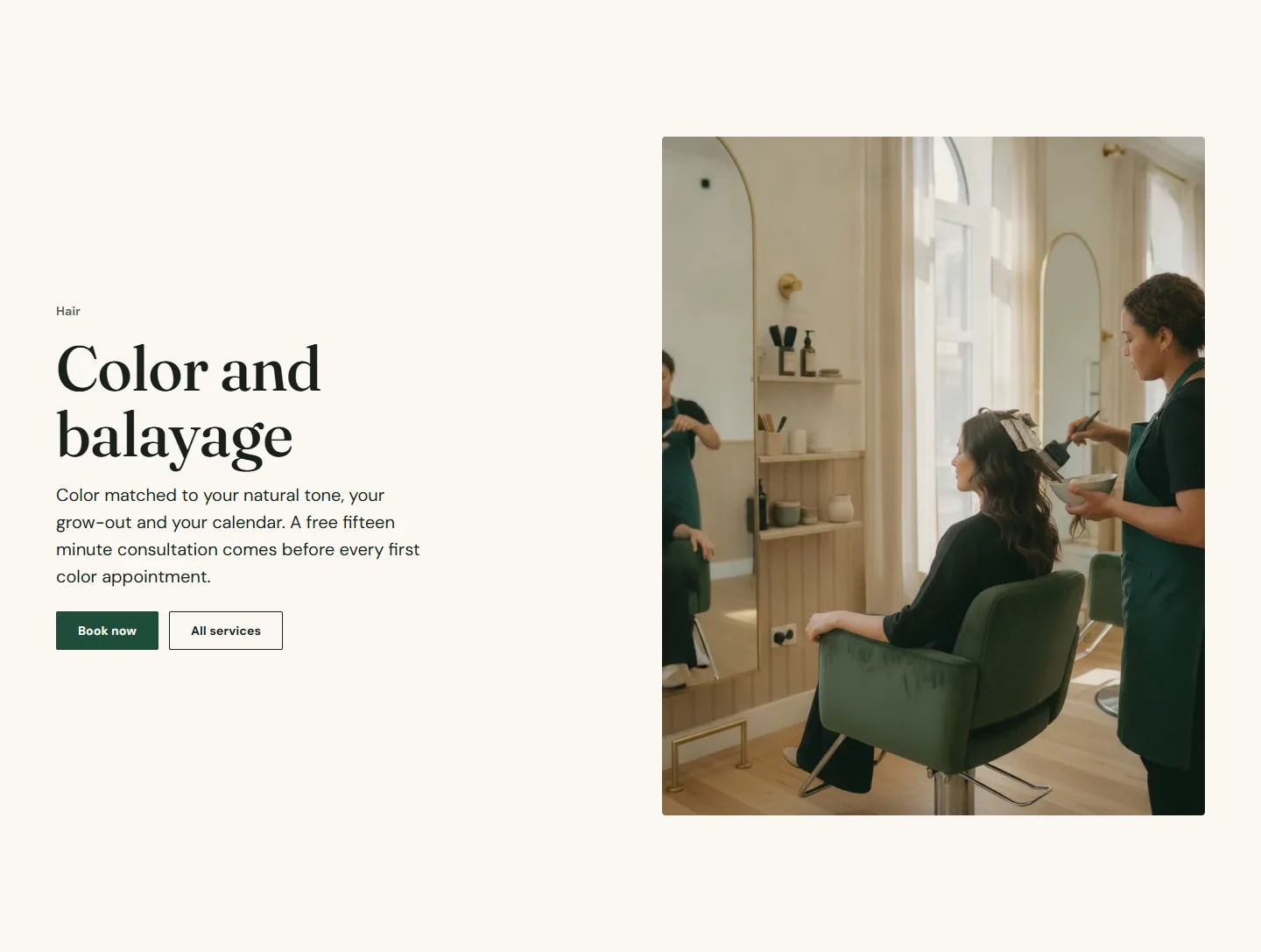
Image with text (opener)
Eyebrow block with the parent category, Heading block with the category name at Heading level H1, a Text block, and a Buttons block with Use the booking button on. Put the category's Booking ID and Link type Category on the button so it lands the guest on that category in Zenoti. Image position on desktop Right, Image shape Portrait.
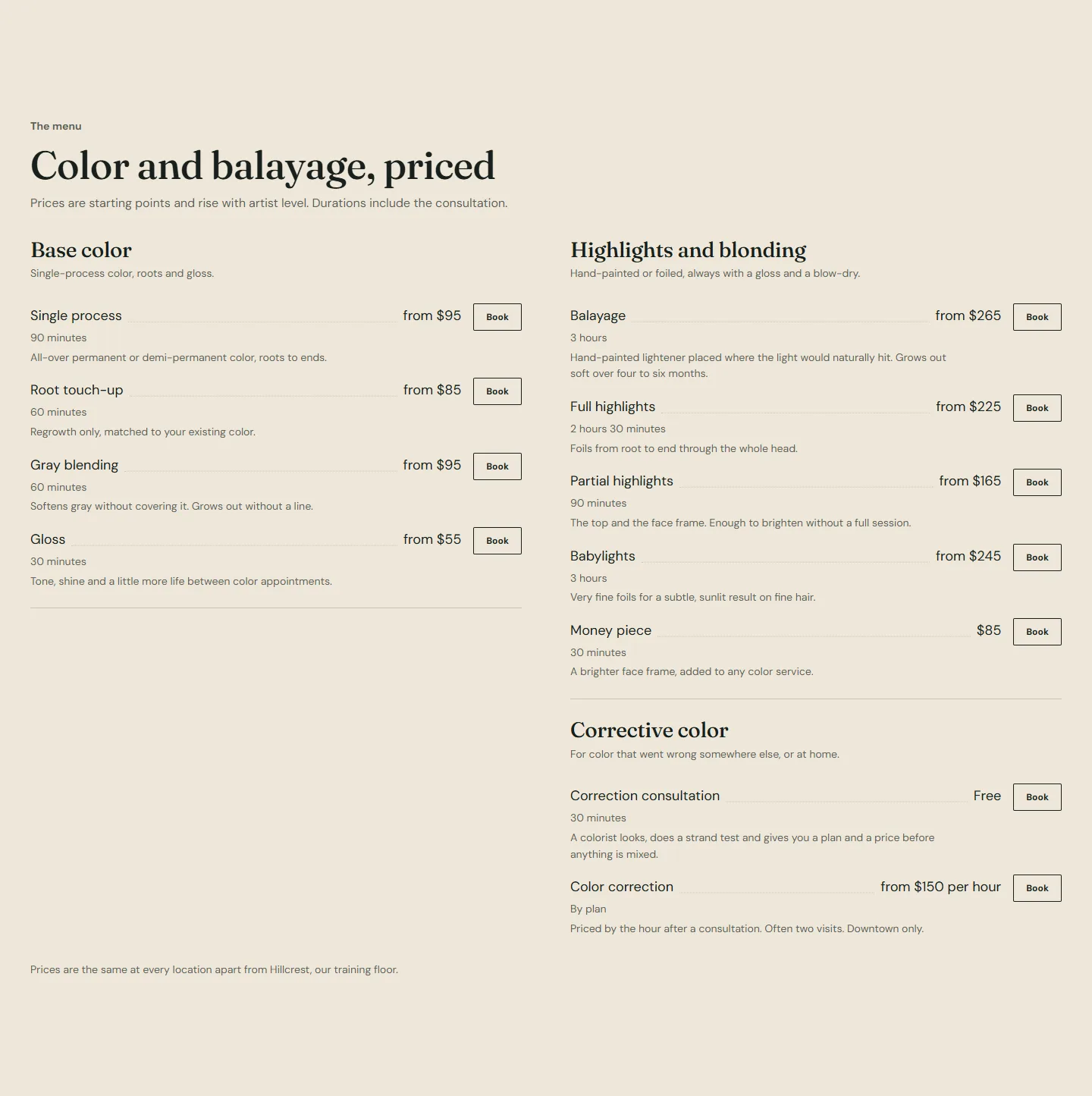
Service menu
Category blocks for each group (Base color, Highlights, Correction) followed by their Service blocks. The demo uses Layout Open list, Two columns on desktop on, Full width on and scheme 3, so the menu reads as a distinct band. Every setting is in Service menu section.
Before and after
Two or more Pair blocks with a Treatment or concern each, and the Disclaimer your legal advisor has approved. See Before and after.
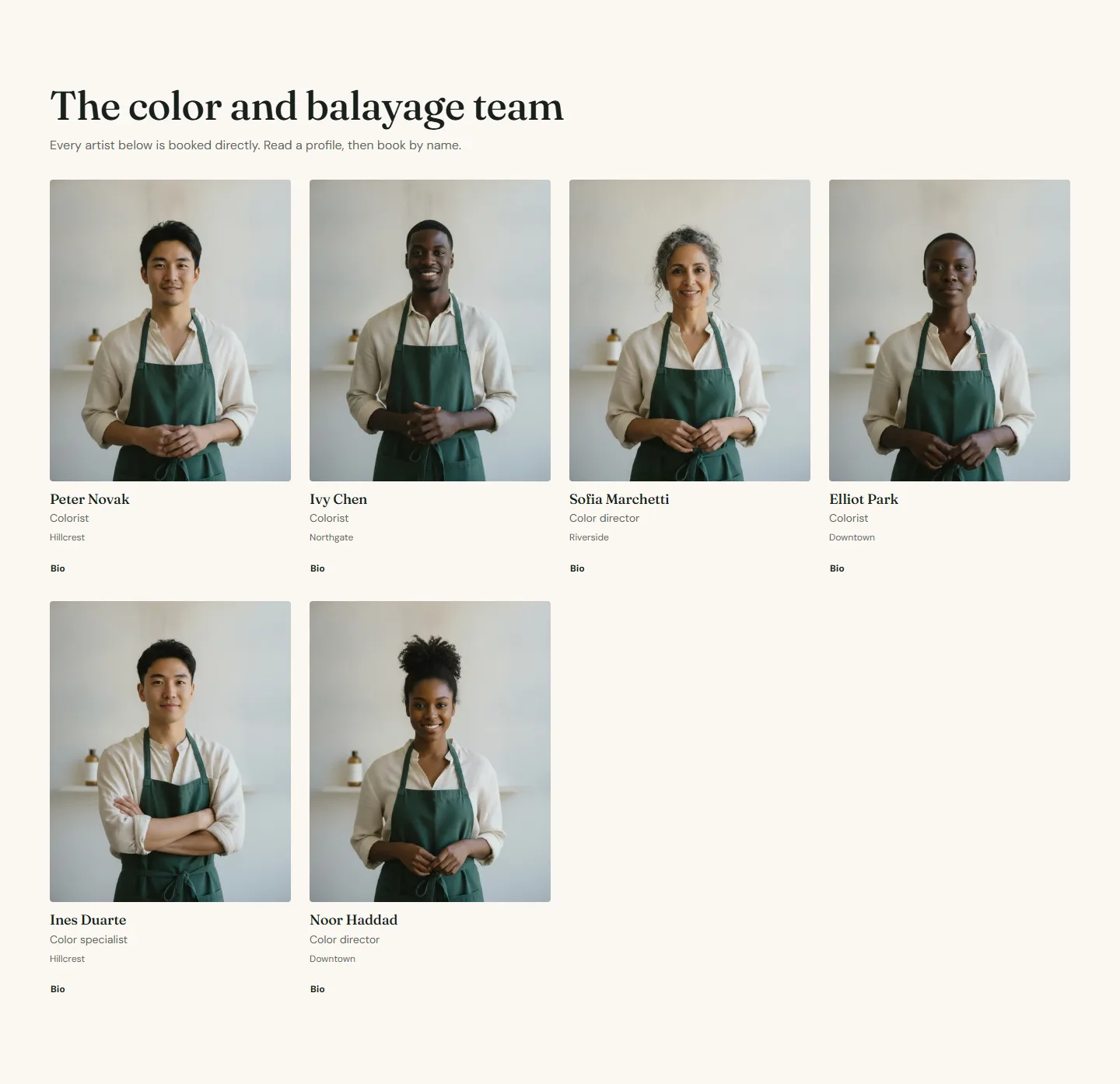
Team grid
Experts come from A collection of products, the same collection as your team page, with Show only these roles listing the roles that do this work exactly as they appear in the role metafield, for example Color director, Colorist, Color specialist. The page then shows only those people, with their profile links. See Filters.
Testimonials, FAQ, related services, call to action
One large quote, three questions with Add FAQ structured data on, a services grid of three related categories with Image shape Landscape, and a Call to action banner with the booking button.
Category pages for one location
If a category is only offered at one location, set Booking center ID and Location name on the service menu and the opener's button so every Book button on the page books that center.