

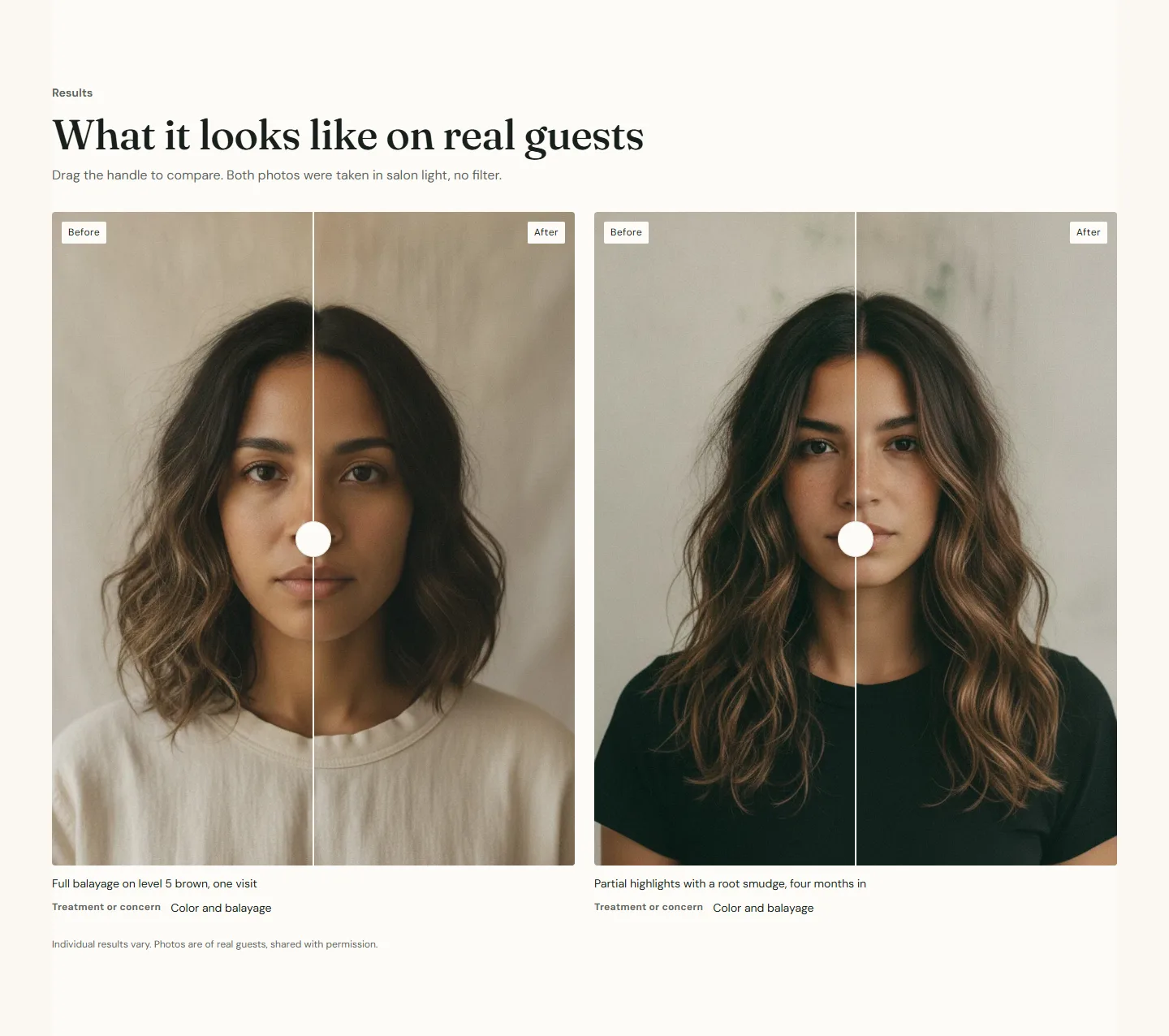
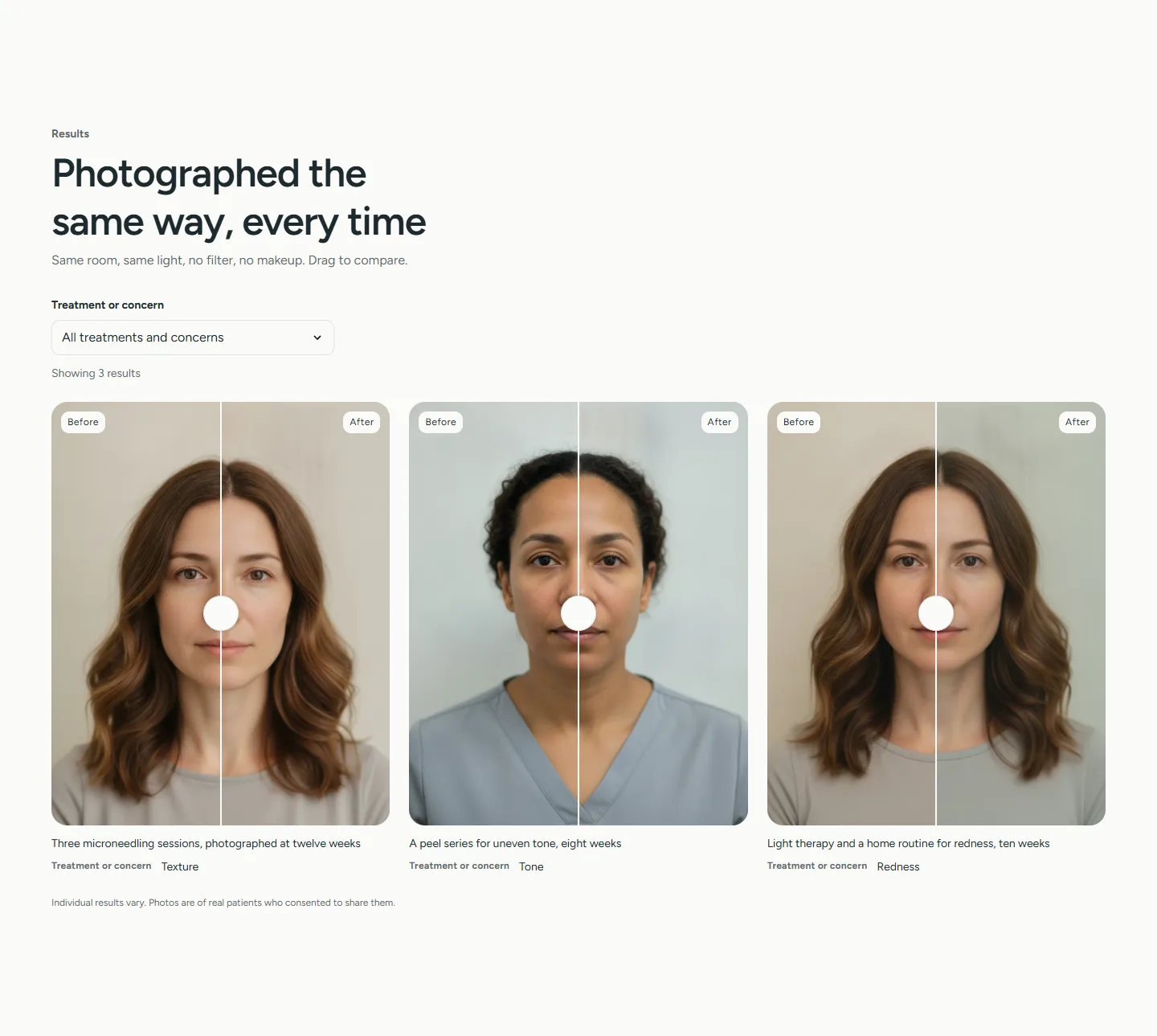
The Before and after section shows up to six pairs of photos with a handle the guest drags to compare them. It is built for clinics and color work, where the result is the argument, and it carries a disclaimer so the claim stays honest.
Pair blocks
- Before image and After image. Use the same person, the same light and the same crop for both, or the comparison does not read. Atrium crops both to the Image shape you choose, so start with matching frames.
- Caption describes the pair: "Three microneedling sessions, twelve weeks apart".
- Treatment or concern is a short label shown on the caption and used by the filter, for example Acne scarring or Color correction. Spell it the same on every pair that belongs together.
- Services and Products are shown in the caption for the sales you want to make: "Corrective color, gloss" and "Bond mask, mineral sunscreen".
Before and after section
Every setting, with its control and default- Color schemeColor scheme · Scheme 1
- EyebrowText · Results
- HeadingText · Twelve weeks of treatment, one photo apart
- TextRich text
- Heading alignmentChoice: Left, Center · Left
- Columns on desktopSlider: 1 to 3 · 2
- Image shapeChoice: Portrait, Square, Landscape · Square
- Starting position of the handleSlider: 10 to 90 % · 50%
- Show filter by treatment or concernCheckbox · OnBuilds a dropdown from the Treatment or concern field on each pair. Hidden when fewer than two are set.
- DisclaimerRich text · Results vary from person to person.Check the wording with your legal advisor before publishing treatment results.
- Disclaimer positionChoice: Above the gallery, Below the gallery · Below the gallery
- Full widthCheckbox · Off
- Section paddingChoice: None, Small, Regular, Large · Regular
Pair block
Up to 6 blocks in the section- Before imageImage
- After imageImage
- CaptionText · Three microneedling sessions, twelve weeks apart
- Treatment or concernTextShown as a caption label and used by the filter, for example Acne scarring or Color correction.
- ServicesTextShown in the caption, for example Corrective color, gloss.
- ProductsTextShown in the caption, for example Bond mask, mineral sunscreen.
Section settings
- Eyebrow, Heading, Text and Heading alignment.
- Columns on desktop, 1 to 3. Two suits portrait pairs; one makes each comparison large.
- Image shape Portrait, Square or Landscape.
- Starting position of the handle, 10 to 90 percent. Fifty shows half of each photo; a lower value shows more of the after.
- Show filter by treatment or concern builds a dropdown from the Treatment or concern labels on the pairs. It hides itself when fewer than two labels are set, and a Clear link returns to all pairs.
- Disclaimer is rich text, shown Above the gallery or Below the gallery by Disclaimer position. The default reads Results vary from person to person; check the wording with your legal advisor before publishing treatment results.
Before and after section
Every setting, with its control and default- Color schemeColor scheme · Scheme 1
- EyebrowText · Results
- HeadingText · Twelve weeks of treatment, one photo apart
- TextRich text
- Heading alignmentChoice: Left, Center · Left
- Columns on desktopSlider: 1 to 3 · 2
- Image shapeChoice: Portrait, Square, Landscape · Square
- Starting position of the handleSlider: 10 to 90 % · 50%
- Show filter by treatment or concernCheckbox · OnBuilds a dropdown from the Treatment or concern field on each pair. Hidden when fewer than two are set.
- DisclaimerRich text · Results vary from person to person.Check the wording with your legal advisor before publishing treatment results.
- Disclaimer positionChoice: Above the gallery, Below the gallery · Below the gallery
- Full widthCheckbox · Off
- Section paddingChoice: None, Small, Regular, Large · Regular
How the handle works
The handle is a slider control. Guests drag it with a finger or a mouse, tap either side of it, or focus it and use the arrow keys. Because it is a native control, a screen reader announces it as a slider with its position. If the page scrolls instead of the handle moving on a phone, the two images are different sizes; give them the same crop.
Where to use it
On category pages and service pages next to the menu, and on the home page for a clinic. Keep pairs to the service on that page so the filter has a job to do.