

A location page is the page a guest reads before they walk in: where it is, when it is open, who works there and what they can book. Atrium builds it from the location template, one template per location, so each page has its own hours, menu and team.

Make one template per location
- In the theme editor choose Pages in the top bar, then Create template, base it on location and name it after the location (location-downtown).
- Fill in the sections below.
- Under Online Store → Pages, create the page and set Theme template to the new template.
- Add the location to the header's Menu location blocks, the location finder, the home page locations grid and the booking picker.
For the next location, create a template based on the one you just finished and change what differs.
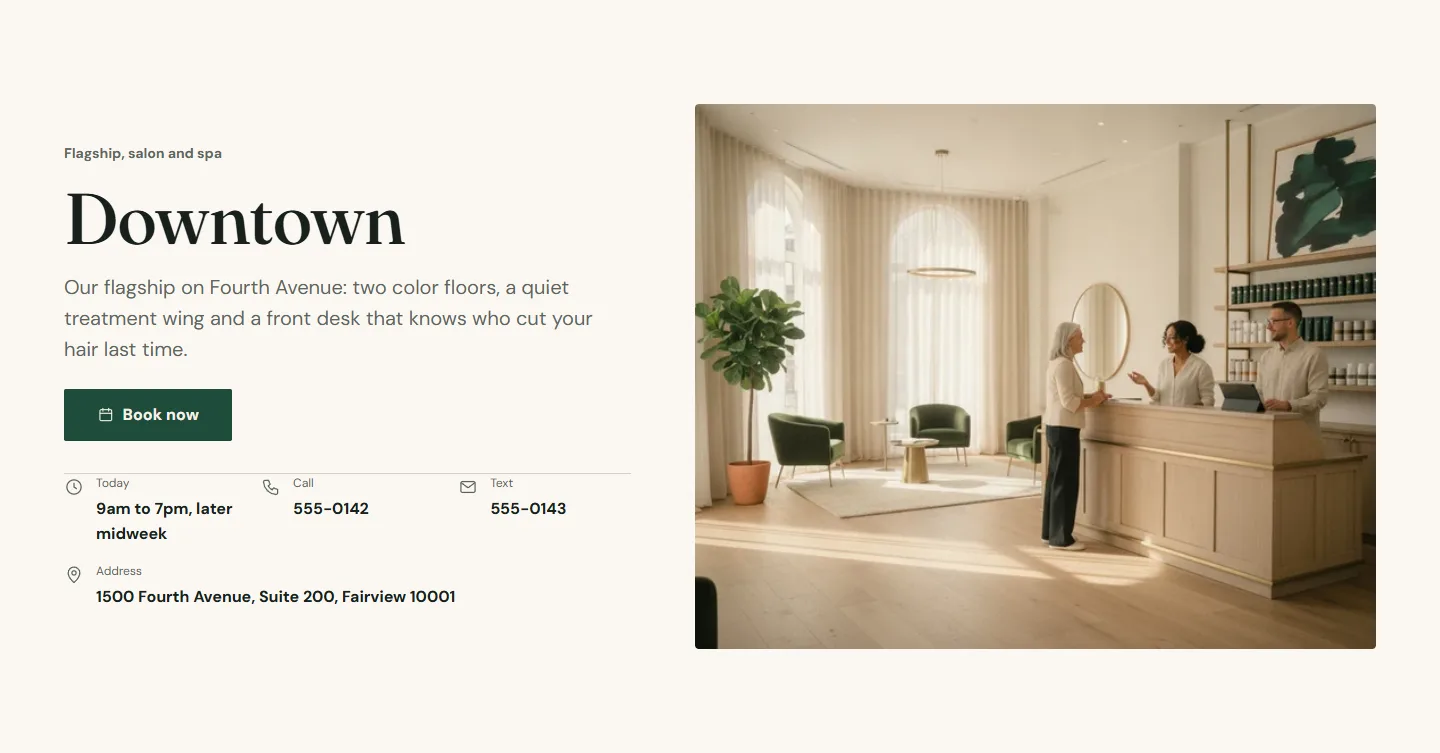
Location hero
The opener. It sets the page heading and the center every button on the page books.
- Location name is the H1 and is sent with every booking link. Falls back to the page title.
- Subtitle, one line under the name (Flagship, salon and spa), and Intro text.
- Booking center ID for this location. Leave it blank to use the default from theme settings.
- Quick facts: Address, Phone number, Text number (shown as a link that opens the messaging app), Hours summary (one short line; full hours go in the details section), Directions link and a Map thumbnail.
- Media: an Image, or up to six Image slide blocks for a small carousel, with Image position Right or Left.
Location hero section
Every setting, with its control and default- Color schemeColor scheme · Scheme 1
- Full widthCheckbox · Off
- Section paddingChoice: None, Small, Regular, Large · Regular
- Location nameTextUsed as the page heading and sent with every booking link. Falls back to the page title.
- SubtitleText · Downtown
- Intro textRich text
- Booking center IDTextThe provider ID for this location. Leave blank to use the default from theme settings.
- AddressText
- Phone numberText
- Text numberTextShown as a link that opens the shopper's messaging app.
- Hours summaryTextOne short line, for example 9am to 7pm. Full hours live in the location details section.
- Directions linkLinkPaste the share link from your map provider.
- Map thumbnailImageA small static map image shown beside the address.
- ImageImageUsed when no image slides are added.
- Image positionChoice: Right, Left · Right
Image slide block
Up to 6 per section- ImageImage
Location details
Hours by day, amenities, a holiday note and a map. Every setting is in Hours, amenities and holidays.
Gallery
Three to five photos of the space. One with Tile size Feature takes a two-by-two tile.
Service menu for this location
The same Service menu section as everywhere else, with Location name and Booking center ID set to this location so every row books here, and only the services offered here. The demo uses the collapsible layout with the first category open.
Team at this location
A Team grid with Experts come from A collection of products and Show only these locations set to this location's name exactly as it appears in the location metafield. The same collection then serves every location page. See Filters.
Testimonials, questions, nearby, call to action
One quote from a guest of this location, a FAQ for the questions people ask before coming in (parking, step-free access, children), a Locations grid with the two or three nearest locations under the heading Also nearby, and a Call to action banner with Location name for tracking set to this location.
A location on another booking provider
The location blocks in the location finder, the locations grid and the booking picker each have a Booking link field: paste the provider's link for this location there and leave Booking center ID blank. The location hero and location details build their button from the Booking site address in theme settings, so on another provider they open that address; set Show a booking button off in the details section if that is not the page you want, and let the finder and the menu carry the links.