

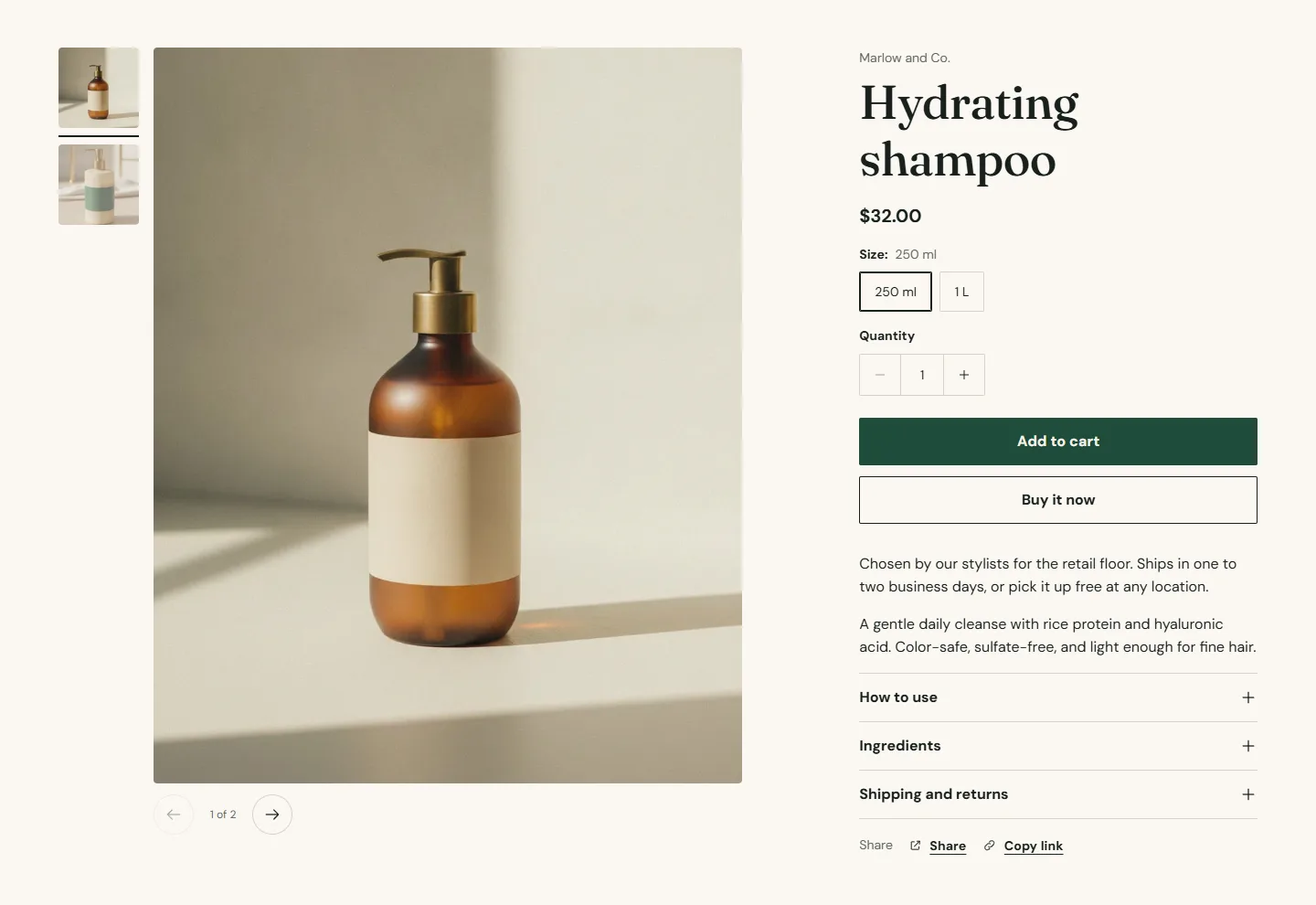
The Variant picker block on the product page shows each product option (Size, Shade, Scent) as a group of buttons or a dropdown. Options whose values carry a swatch in Shopify render as color or image swatches instead of text buttons, with no theme setting to fill.
Block settings
- Style is Buttons or Dropdown. Buttons show every value at once and mark unavailable ones; a dropdown saves space for options with many values.
- Swatch shape is Circle or Square, and applies only to option values that have a swatch.
Variant picker block
Up to 1 per section- StyleChoice: Buttons, Dropdown · Buttons
- Swatch shapeChoice: Circle, Square · CircleApplies to option values that have a swatch set in your product options.
Where swatches come from
Swatches are set in Shopify, not in the theme. In your admin, open the product, edit an option value, and give it a color or an image; or manage them centrally under Settings → Custom data → Product option values with a category metafield. Atrium reads the swatch's color or image and shows it. Products without swatch data get text buttons.
Unavailable and sold out
A value that has no available variant with the current selection is shown struck through and stays selectable, so a guest can see what exists. The buy button changes to Sold out when the chosen variant has no stock, and to Unavailable when the combination does not exist.
Variant images
When a variant has its own image, choosing it switches the gallery to that image. Assign images to variants in the product's Media panel.
Prices
Price, compare-at price and unit price update as the selection changes. Selling plan prices update too, see Subscriptions.
On product cards
Cards do not show swatches; a product with variants gets a Choose options button when Show quick add button is on. See Product cards.