

Atrium is a theme for businesses that take bookings: salons, barbershops, day spas, aesthetic clinics and lash, brow and nail studios. It installs like any other theme from the Shopify Theme Store, and the choices you make in the first hour set up everything else.
Add the theme
- Open Atrium on the Shopify Theme Store and choose the style that matches your business. Each style is a preset, described below.
- Choose Add theme. Shopify copies it into Online Store → Themes as an unpublished theme, so your current storefront keeps running.
- Choose Customize to open the theme editor. Nothing is live until you choose Publish.
Every section arrives with placeholder text that explains what belongs there. Replace the text rather than deleting the section, so you keep the structure that makes each page work.
The five presets
A preset sets the colors, the two fonts, the corner radius, the button style and the home page composition. Everything in it can be changed afterwards, so choose by mood, not by feature: every preset has every section.
| Preset | Built for | Type | Palette |
|---|---|---|---|
| Atrium | Multi-location salon groups | Fraunces headings, DM Sans body | Oat, deep green, brass |
| Barber | Barbershops | Oswald headings in uppercase, Work Sans body | Bone, charcoal, oxblood |
| Spa | Day spas and wellness studios | Cormorant headings, Figtree body | Sand, sage, warm white |
| Clinic | Aesthetic and medical clinics | Figtree throughout | Porcelain, slate, teal |
| Lash | Lash, brow and nail studios | Playfair Display headings, DM Sans body | Blush, plum, warm off-white |

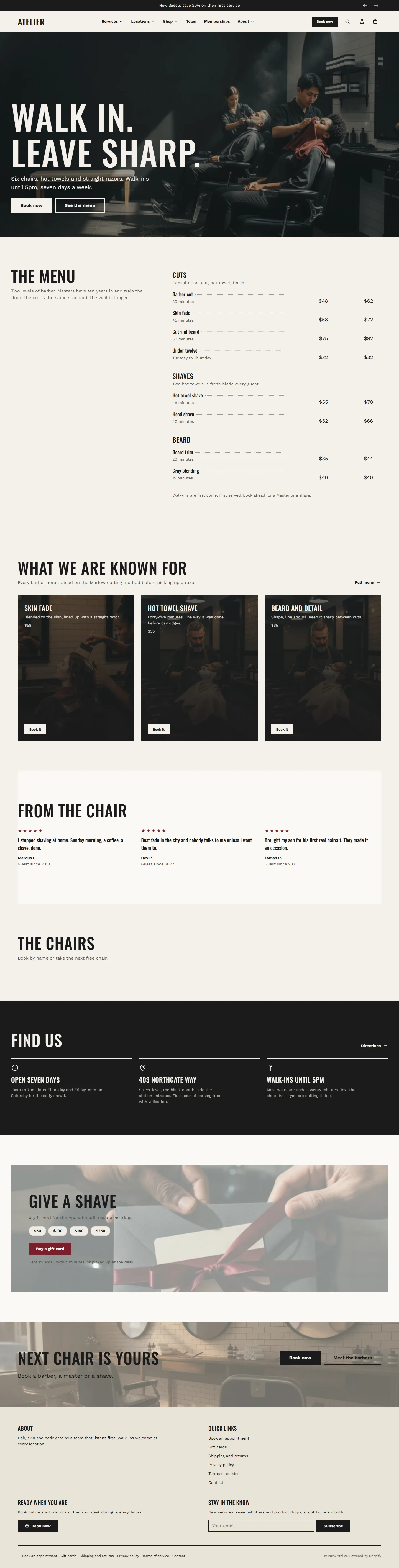
Each preset also opens its home page differently: Barber leads with a two-level printed price menu, Spa with a full-height centered hero and a visit walkthrough, Clinic with numbers, concerns and filtered before-and-after results, Lash with a fill matrix and offers. Those compositions are installed with the preset. Switching preset later in the editor changes the settings, not the sections on your pages.
Change preset later
In the theme editor open Theme settings, then the theme style panel at the bottom of the list, and choose another style. Shopify replaces every value under Theme settings with the preset's values, so do this before you spend time on colors and fonts, not after.
What to do first
- Connect your booking. Until you do, every Book button opens a small dialog asking the guest to choose a location, and the location's own booking link takes over from there. See Connect Zenoti Webstore.
- Add your locations to the header, the location finder and the booking picker, and make a page for each one. See Location pages.
- Build your services. A services page, a page per category and, if you like, a page per signature service. See Services page.
- Add your people with blocks, or connect a collection if you have more than forty. See Team section with blocks.
- Publish when the home page, services and one location page read the way you want. Everything else can go live later; a section you have not filled in simply keeps its placeholder copy until you do.
Before you publish
- Set a favicon and your social links under Theme settings.
- Check the home page on your phone. Atrium is designed for phones first, and most of your guests will book from one.
- Turn on the announcement bar only if you have something to announce. It is a section in the header group and can be removed.