

Guests often want to book by name. Zenoti Webstore does not offer a public link that pre-selects a provider, so Atrium cannot build one. Instead, every team member can carry their own booking link, and the theme falls back sensibly when they do not.
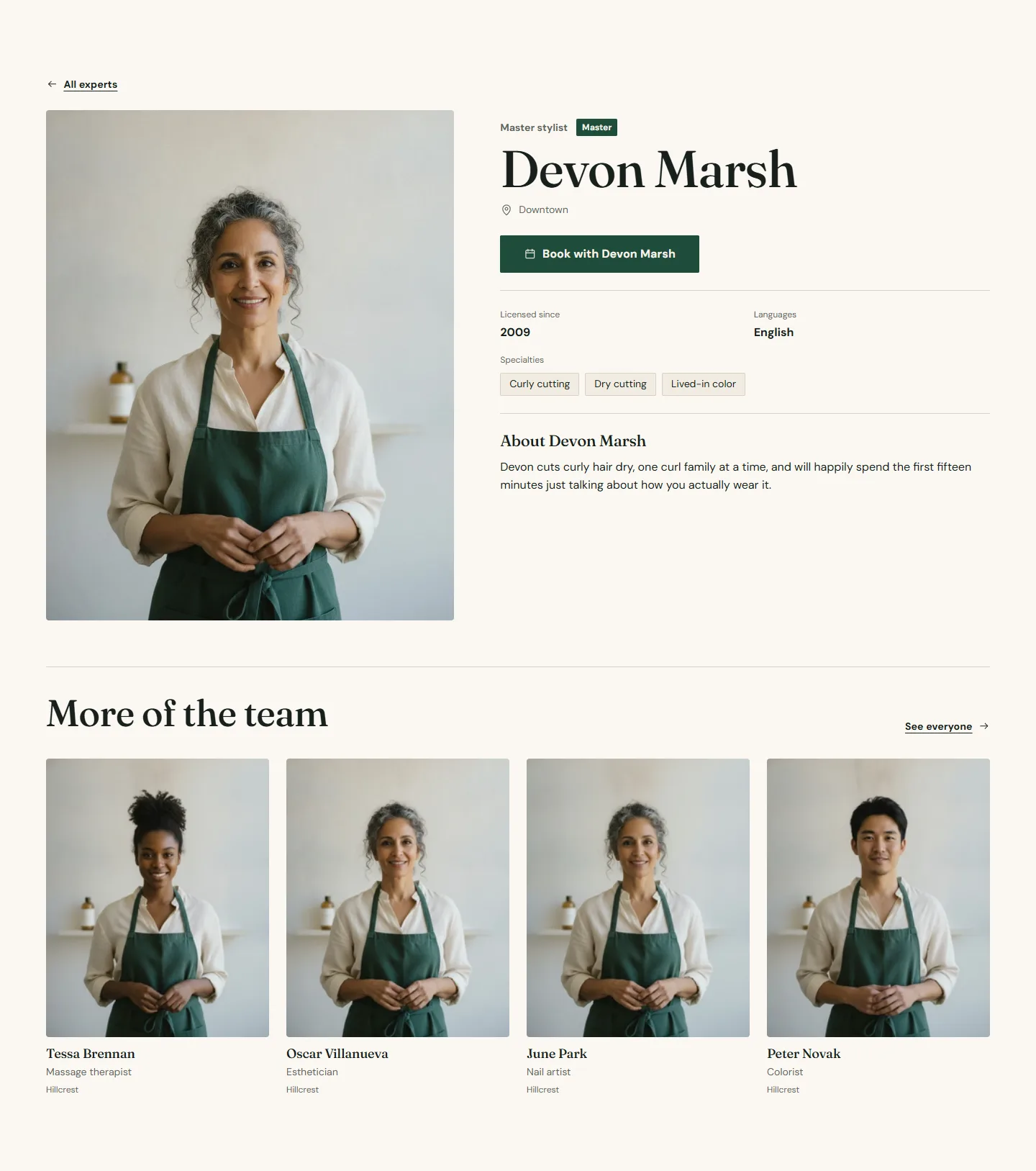
What the Book button on a profile does
On a team card and on an expert profile page, the button follows this order:
- A booking link for that person. In blocks mode, the Person block's Link field. In collection mode, the product metafield named by Booking link key (default
booking_url). If it is filled, the button opens it. - A booking ID for that person. The Person block's Booking ID with its Link type, or the metafield named by Booking ID key (default
booking_id). Atrium builds a link from it the same way it does for a service. - The location. With neither, the button books the expert's location using the section's Booking center ID, or the default center from Theme settings.
So a store with no per-stylist links still gets a working button on every profile: it opens the right center, and the guest picks the stylist in Zenoti.
Where to get a per-stylist link
- Some Zenoti setups expose a provider-specific Webstore address. Ask your Zenoti account manager; if one exists, paste it into the expert's Booking link metafield (or the block's Link field).
- Providers such as Vagaro, Boulevard and Fresha publish a booking page per staff member. Paste that page's address.
- A link to a contact page or a text-message link (
sms:followed by the number) also works for stylists who prefer to be booked by message.
Setting it up
Blocks mode. Open the Team grid section, choose the Person block and fill in Link, or Booking ID plus Link type.
Collection mode. In the expert's product, fill the custom.booking_url metafield with the link, or custom.booking_id with the provider ID. If your metafield definitions use other names, type those names into Booking link key and Booking ID key on both the Team grid and the Expert profile section so the two read the same fields. See Expert directory with metafields.
Expert profile section
Every setting, with its control and default- Color schemeColor scheme · Scheme 1
- Full widthCheckbox · Off
- Section paddingChoice: None, Small, Regular, Large · Regular
Reads the expert's name, photos and description from the product, and everything else from the metafields mapped below. No price or cart is ever shown.
- Back link labelText · All experts
- Back linkLinkUsually the team page.
- Booking center IDTextUsed when the expert has a booking ID but no booking link. Leave blank to use the default from theme settings.
Use the same namespace and keys as the team grid so both read the same fields.
- NamespaceText · custom
- Role keyText · role
- Location keyText · location
- Level keyText · level
- Specialties keyText · specialties
- Languages keyText · languages
- Licensed since keyText · licensed_since
- Instagram keyText · instagram
- Booking ID keyText · booking_id
- Booking link keyText · booking_urlOptional. A metafield holding a full booking URL for one team member. When it is set, that link replaces the generated booking link for that person.
- Bio keyText · bio
Instagram instead
Many stylists take bookings by direct message. The expert profile shows an Instagram button next to the Book button whenever the Instagram key metafield (or the block's Instagram link) is filled, so a guest can choose either.