

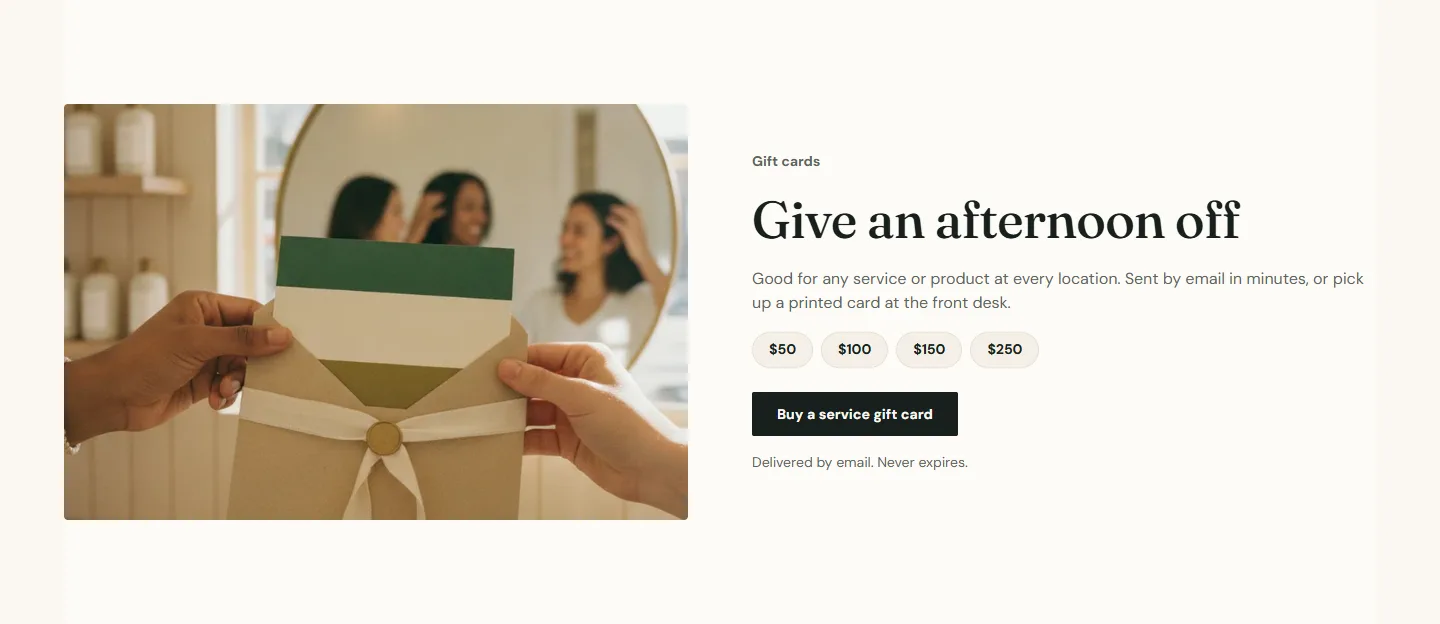
There are two kinds of gift card in a booking-led business, and Atrium handles both. A Shopify gift card is a product: bought in your cart, redeemed against products in your store. A service gift card is sold by your booking provider and redeemed against appointments. The Gift card band section puts both on one panel.
Create the Shopify gift card product
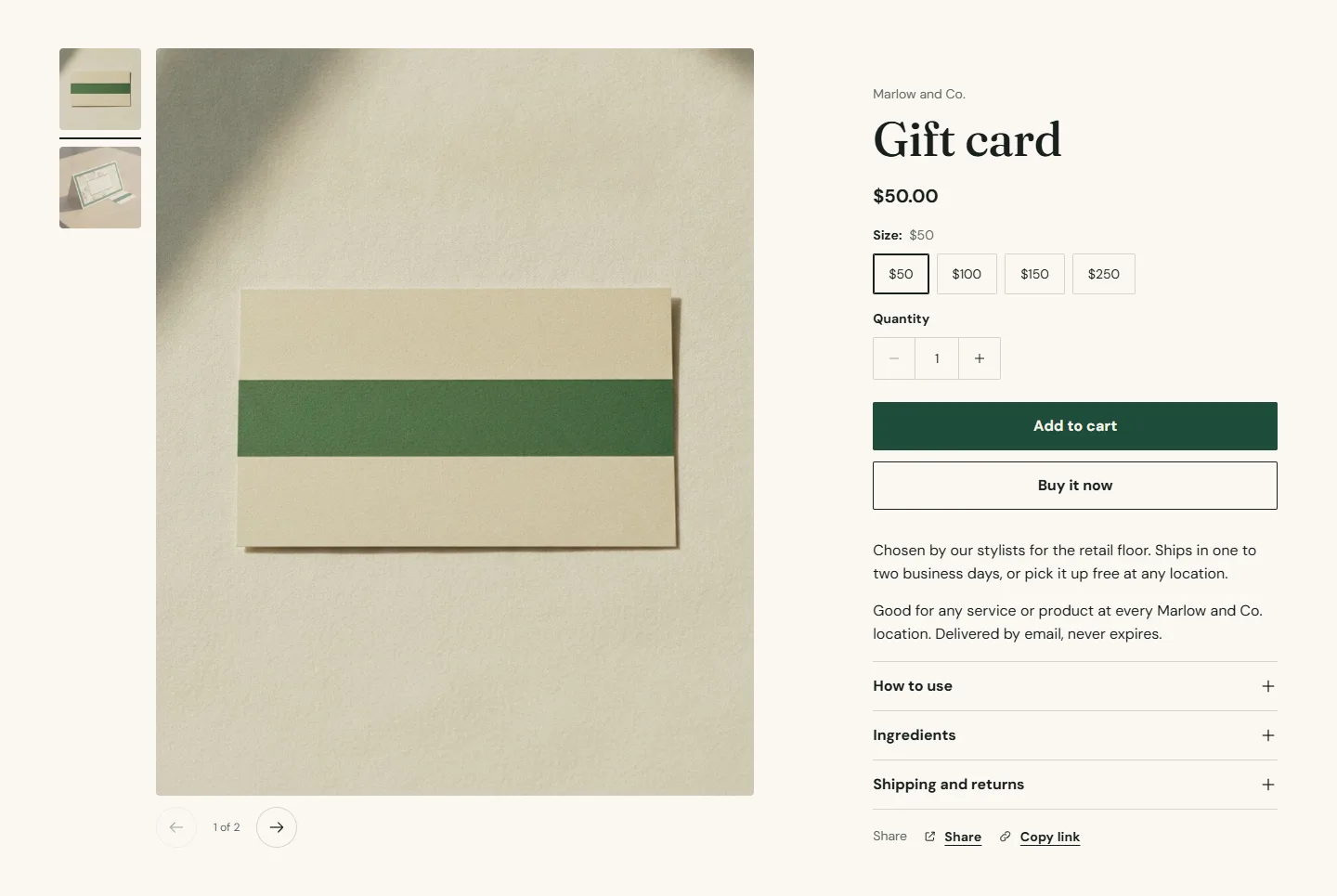
Under Products → Add product, choose Gift card as the product type and add denominations as variants ($50, $100, $150, $250). Its product page uses the ordinary product template: variant buttons for the amounts, a recipient form so the buyer can send it to someone else with a message and a delivery date, and the buy buttons.
The gift card band
- Eyebrow, Heading, Text and a Note (Delivered by email. Never expires.).
- Amounts is a comma-separated list, for example 50, 100, 150, 250. Plain numbers are shown in the store currency.
- Gift card product is your Shopify gift card; the main button, labeled with Gift card button label, links to it.
- Link to the booking provider's gift cards adds a second button, labeled with Provider button label, that opens the Gift cards page from Theme settings → Booking, or
/webstoreNew/giftcardson your booking address when that is blank. - Image, Image description, and Layout (Image left, Image right, Image behind text) with an Overlay for the behind-text layout.
Gift card band section
Every setting, with its control and default- Color schemeColor scheme · Scheme 2
- Full widthCheckbox · Off
- Section paddingChoice: None, Small, Regular, Large · Regular
- EyebrowText · Gift cards
- HeadingText · Give an afternoon off
- TextRich text · Good for any service or product at every location. Sent by email in minutes, or pick up a printed card at the front desk.
- AmountsText · 50, 100, 150, 250Comma separated. Plain numbers are shown in the store currency, for example 50, 100, 150, 250.
- NoteText · Delivered by email. Never expires.
- Gift card productProductYour Shopify gift card product. The main button links to it when set.
- Gift card button labelText · Buy a gift card
- Link to the booking provider's gift cardsCheckbox · OnUses the gift card link from theme settings, or the provider's default gift card page.
- Provider button labelText · Buy a service gift card
- ImageImage
- Image descriptionTextUsed when the image has no alt text in files.
- LayoutChoice: Image left, Image right, Image behind text · Image left
- OverlaySlider: 0 to 90 % · 60%Only used when the image sits behind the text.
The gift card page
When someone buys a Shopify gift card, Shopify emails the recipient a link to the gift card page. Atrium's version shows the card's value and code, a QR code the front desk can scan, an Apple Wallet button where Shopify provides a pass, and your store name and logo. Preview it from Products → your gift card product → Preview gift card in the admin.
Where to put the band
The demo uses it on the offers page and the preset home pages for Barber, Spa and Lash. Any page can carry it; before a holiday it earns a place on the home page.